Meta removed the standalone Audience Insights tool and moved everything into Meta Business Suite Insights. Audience data from Facebook and Instagram is now combined into one system.
This shift changes how targeting works. You’re no longer analyzing static reports — you’re shaping audiences in a live environment that updates in real time.
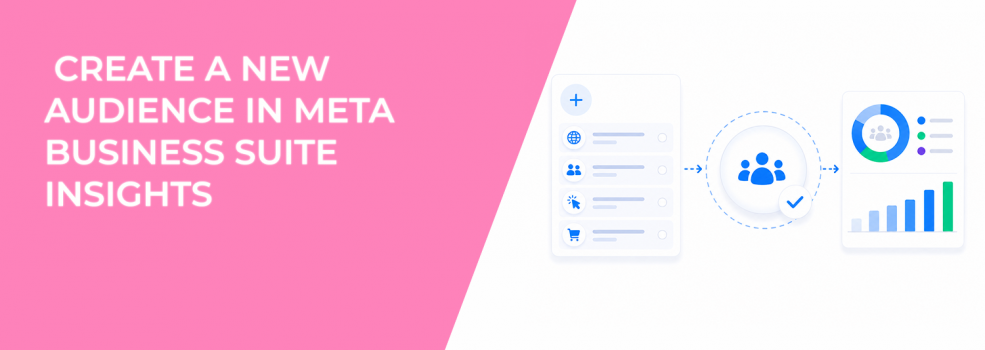
How to create a new audience in Meta Business Suite Insights (step-by-step)
The process is simple, but each step affects performance later.
- Open Insights in Meta Business Suite
This is your entry point to audience data across Facebook and Instagram. - View your current audience insights
This gives context before applying filters. - Select the correct ad account
Different accounts have different data patterns, which affects targeting accuracy. - Click on Potential audience
This shows how your targeting inputs translate into reach and structure. - Click Filter in the top right
Filters define your audience and update it instantly. - Apply your targeting filters
Each filter changes both audience size and signal quality. - Click Create audience, name it, and save
The audience becomes available in Ads Manager.
Most advertisers treat this as a checklist. In reality, this is where campaign performance is decided.
What the “Potential audience” view is really telling you
The “Potential audience” section acts as a pre-launch diagnostic tool. It shows how your audience might behave before you spend budget.
Every filter you apply changes audience size, behavior distribution, and signal strength. These factors directly influence how Meta optimizes delivery.
A better approach is to use this data to identify high-intent audiences using Facebook Insights instead of relying on surface-level targeting.
How filter choices impact CPC, CPA, and delivery
Every filter affects how Meta enters the ad auction. This directly influences your costs.
Narrow audiences increase competition and raise CPM. Broad audiences reduce CPC but often lower conversion quality. The most common issue is misalignment. You get clicks but no conversions, which signals weak audience intent.
If that happens, you need to fix audience misalignment in your campaigns before adjusting creatives.
A better way to use Insights when creating audiences
Instead of stacking filters, treat audience creation as a test. Start broader, then refine based on real performance data. Watch early signals in Ads Manager. CPM spikes, unstable spend, or weak conversions usually point to targeting issues.
This approach aligns with how Meta learns — through consistent signals, not rigid targeting rules.
When Meta’s native data is not enough
Meta Insights only reflects behavior inside its platforms. It doesn’t capture external intent signals.
This becomes a problem in B2B or high-ticket campaigns. Engagement doesn’t always mean buying intent.
LeadEnforce solves this by using data from Facebook groups, Instagram engagement, and social profiles. These signals reflect active interest, not passive scrolling.
Why Insights-based audiences fail during scaling
Audiences often perform well at low budgets but break when scaled. Meta expands beyond high-signal users as spend increases.
Lower-intent users enter the audience. Conversion rates drop while costs rise.
To maintain performance, you need structure. That’s where advanced audience segmentation strategies become essential.
Final takeaway
Creating an audience in Meta Business Suite is easy. Creating one that performs requires understanding how filters affect delivery.
If you treat Insights as a signal system, you’ll build audiences that scale. If you rely on assumptions, performance will break quickly. Audience creation is not just setup. It’s where campaign efficiency starts.