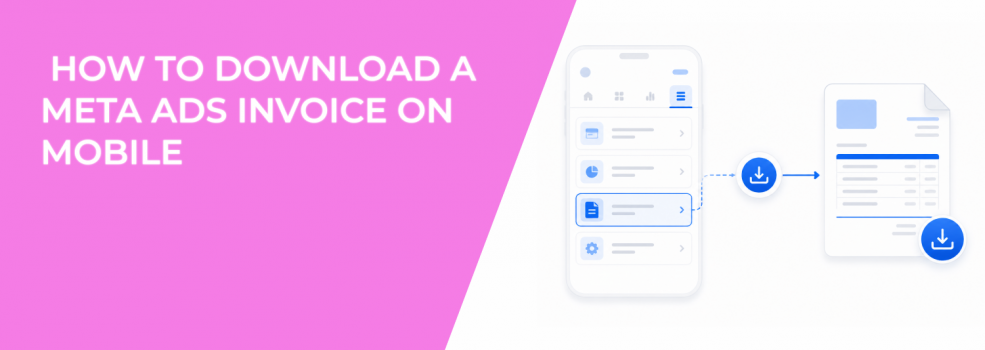
Downloading an invoice from the Meta Ads Manager app is a basic billing task. It still matters for performance teams, agencies, and small businesses that need clean spend records.
Ads Manager reporting shows campaign spend, CPA, ROAS, and other performance metrics. An invoice gives your finance team or client the billing document behind that spend.
That difference matters when a monthly report looks profitable, but the actual billed amount does not match the budget plan. A missing invoice can slow down approvals, delay client billing, or make CAC calculations harder to trust.
How to Find and Download an Invoice in the Ads Manager App
Meta’s mobile flow starts inside the Ads Manager app. From there, you open the account area, go into billing, and choose a payment activity date.
Follow the steps carefully:
- Open the Ads Manager app. Use the app linked to the ad account you need to check.
- Tap the menu icon in the top left. This opens the main navigation area.
- Select Account. This takes you into account-level settings.
- Tap Billing and payments. This is where Meta stores payment-related activity.
- Tap Payment activity. Use this area to view billing events by date.
- Tap a date. Choose the billing date connected to the invoice you need.
- Review the invoice and tap Download. You can view it first, then download it if needed.
The date step is easy to rush. For agencies, this is where mistakes often happen because two clients can have similar billing periods and similar monthly spend.
Why Invoice Access Matters for Performance Reporting
A campaign can look stable in Ads Manager while billing still needs review. Spend may pace normally, CPA may stay within target, and ROAS may look acceptable.
That does not mean the accounting side is finished.
Invoices help confirm what was charged during a billing period. This becomes important when your report uses actual media cost to calculate CAC, margin, or client fees.
For example, a lead generation campaign may show a $48 CPL in Ads Manager. If the invoice period includes extra spend from a late budget increase, your finance view may tell a different story.
That mismatch can lead to bad decisions. A team may think the campaign stayed under budget, while the invoice shows spend exceeded the approved limit.
If your team reviews performance often, pair invoice checks with reading Facebook ad reports like a growth marketer. Reporting is stronger when performance data and billing records tell the same story.
What to Check Before Sending an Invoice to a Client or Finance Team
The invoice is useful only when it matches the right account, period, and billing need. Mobile access is convenient, but it also makes quick mistakes more likely.
Before sharing the file, check these items:
- Ad account. Make sure the invoice belongs to the correct business, client, or brand.
- Billing date. Confirm the selected date matches the reporting period or payment request.
- Currency. Check that the currency matches the budget and client agreement.
- Invoice amount. Compare the amount with Ads Manager spend for the same period.
- Payment status. Look for failed or unusual payment activity before assuming the charge cleared.
These checks protect your reporting process. They also reduce back-and-forth with bookkeeping teams that need exact documents, not screenshots or estimates.
If you manage several accounts, use a clear file naming system after downloading. Include the client name, ad account, month, and billing date so the file stays searchable later.
For larger teams, strong organization matters as much as the download itself. This is especially true when managing multiple ad accounts or brands.
How Billing Gaps Can Distort CPA, CAC, and ROAS
Invoice access does not change delivery. It does not affect CPM, CPC, learning phase, or spend distribution inside Ads Manager.
The performance risk comes from bad cost data.
If billed spend is not matched with campaign results, CPA and CAC can look cleaner than they really are. A startup might report a $90 CAC from Ads Manager, then discover extra billed spend was left out of the calculation.
ROAS can also be affected. If revenue is measured for one period but media cost is pulled from another, the return number becomes unreliable.
This happens often around month-end. Campaigns continue spending, invoices land on different dates, and teams rush reports before billing is reconciled.
A simple mobile invoice check can catch that gap early. It gives the advertiser a billing record before the report goes to a founder, CFO, or client.
When Mobile Invoice Downloads Are Most Useful
The Ads Manager app is best for quick billing checks. It is useful when you are away from your desktop but still need to confirm a charge or send a document.
Common scenarios include:
- Client reporting calls. You can confirm the latest invoice before discussing spend and results.
- Budget approval delays. A downloaded invoice can help finance clear payment questions faster.
- Month-end reconciliation. Mobile access helps you check whether a billing date has posted.
- Agency handoffs. Account managers can share the correct invoice without waiting for a media buyer.
- Small business bookkeeping. Owners can download ad invoices directly instead of searching later.
This is not only an admin shortcut. Faster access to billing records helps teams keep spend decisions tied to real costs.
If budget planning is a recurring problem, review setting realistic ad budgets for Facebook and Instagram campaigns. Invoice history can show whether planned spend and actual charges are staying aligned.
Risks to Avoid When Downloading Invoices From Mobile
Mobile billing access is convenient, but it needs a careful workflow. The main risk is downloading the wrong document and using it in a report.
This can happen when a user manages several ad accounts, switches accounts often, or downloads invoices while multitasking. A wrong invoice can make client billing look inflated or incomplete.
File handling is another issue. Phones may save invoices in downloads, cloud storage, email attachments, or messaging apps. If your team does not have a shared storage process, the invoice can disappear into someone’s device.
Permissions can also block access. Some users can manage campaigns but may not have the right billing access to view payment activity or download invoices.
The safest approach is simple. Download the invoice, check the account and date, rename the file, and store it in the same place your team keeps monthly reporting documents.
Final Takeaway: Treat Invoices as Part of Performance Hygiene
Downloading an invoice in the Meta Ads Manager app is simple. Open the app, go to Account, tap Billing and payments, open Payment activity, choose a date, and download the invoice.
The value is not the download itself. The value is keeping billing records close to campaign decisions.
When invoices match your reporting period, CPA, CAC, ROAS, and budget pacing become easier to trust. When they do not, performance reviews can turn into guesswork.
Use mobile invoice downloads for quick checks, client questions, and month-end cleanup. Keep the process organized so every spend decision starts from accurate numbers.