Excel reports can cause real problems when the wrong Meta account stays connected. A buyer may refresh a spreadsheet, see familiar campaign names, and assume the data belongs to the right client.
That mistake can distort spend, CPA, ROAS, and budget pacing. The campaign may be fine, but the report can still lead the team in the wrong direction.
Logging out of Meta Ads Manager for Excel is a small access step. It helps keep spreadsheet data tied to the correct ad account.
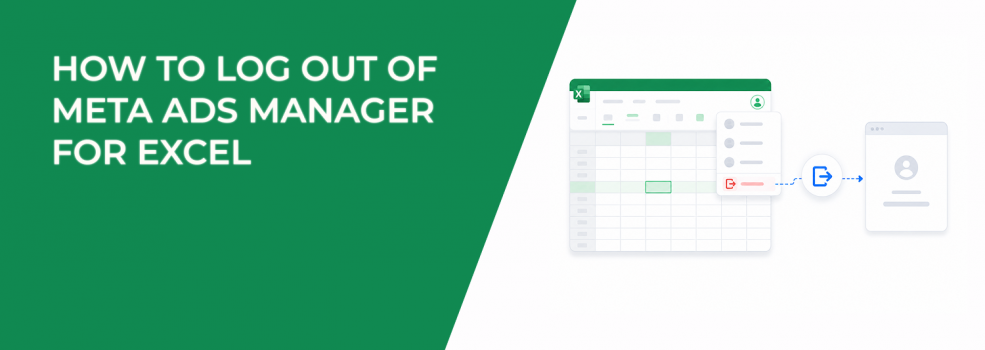
How to Log Out of Meta Ads Manager for Excel
Meta’s logout flow happens inside Microsoft Excel. You do not need to open Ads Manager in your browser.
To log out of Ads Manager for Excel:
- Open Excel on your computer. Use the desktop version where the Meta add-in is installed.
- Click the Insert tab. This is where Excel stores add-ins and external tools.
- Find My add-ins. Next to My add-ins, click the dropdown.
- Choose Meta Ads Manager for Excel. This selects the Meta reporting add-in.
- Select Insert. Excel opens the add-in panel.
- Click More options. This appears inside Meta Ads Manager for Excel.
- Choose Log out. This ends the current Meta account session in the add-in.
After logging out, reopen the add-in and check whether it asks you to sign in again. If it still shows account data, close Excel and open the file again.
Why Logging Out Matters for Paid Social Reporting
A spreadsheet can look accurate while pulling data from the wrong account. That is the dangerous part.
This often happens in agency workflows. One person exports last week’s spend for a SaaS client, then opens another file for an e-commerce account without clearing the session.
The numbers may still refresh. The issue is that the cost data, campaign IDs, or date range may not match the report being reviewed.
That creates bad performance calls. A team may think CPA dropped, ROAS recovered, or spend stayed under budget when the spreadsheet is using the wrong account connection.
For teams handling many clients, logout habits should sit beside naming rules, file storage, and access checks. This is part of managing multiple ad accounts or brands, not just a technical cleanup step.
How Wrong Excel Sessions Can Affect CPA, CAC, and ROAS
Bad session data does not change campaign delivery. It changes the decisions people make after reading the report.
For example, a growth marketer may see a $54 CPA in Excel and approve a budget increase. Later, the team finds that the sheet pulled results from an older ad account with a different funnel.
That mistake can push spend into a campaign that was never truly profitable.
CAC can also become unreliable. If sales data comes from your CRM but ad spend comes from the wrong Meta account, the acquisition cost calculation becomes useless.
ROAS has the same problem. Revenue may belong to one store, while media cost comes from another account or another date range.
If your team already struggles with why Ads Manager data does not match other platforms, check active Excel sessions before blaming attribution or tracking.
When You Should Log Out Before Continuing Work
You do not need to log out every time you open Excel. But some moments carry higher risk.
Log out before you move on when:
- You switch between clients or brands. This prevents one account’s data from appearing in another account’s report.
- You share a reporting file. A live session can expose data to someone who should only view the spreadsheet.
- You finish a monthly report. Logging out closes the reporting cycle cleanly before next month’s data pull.
- You troubleshoot a mismatch. A fresh login helps confirm whether the problem comes from the add-in connection.
- You audit account performance. Audits need clean data before anyone comments on CPA, ROAS, or wasted spend.
These checks are simple, but they prevent messy handoffs. They also reduce the chance that a client sees numbers from another account.
Account Access Risks Inside Excel
Excel add-ins can be easy to forget because they sit outside Meta’s main interface. Teams often check Business Manager permissions but ignore connected spreadsheet tools.
That leaves a gap. A logged-in Excel add-in can still show ad account data through an active session.
This matters when laptops are shared, reports are passed between departments, or an agency teammate leaves a client project. The file itself may look harmless, but the active connection can reveal campaign data.
Logging out does not replace proper permissions. It adds another layer of control.
If access is changing across a team or client relationship, review giving Facebook Ads Manager access to clients or teams as well. The Excel logout step should support the broader access process.
How to Check Whether the Logout Worked
A clean logout should remove the active account connection from the add-in. The next user should need to sign in before refreshing Meta data.
Check for three signs:
- The add-in asks for login. This is the clearest sign that the previous session ended.
- Account details no longer appear. The panel should not show the old ad account as active.
- Data refresh requires reconnection. Excel should not pull fresh Meta data without a new sign-in.
If the add-in still refreshes data, restart Excel. Then open the add-in again and repeat the logout flow.
This extra minute is worth it before sending a report. A spreadsheet with the wrong account connection can waste hours during reconciliation.
Final Takeaway: Clean Sessions Keep Reports Trustworthy
Logging out of Meta Ads Manager for Excel is a simple process. Open Excel, go to Insert, choose the Meta Ads Manager for Excel add-in, open More options, and select Log out.
The bigger point is data control. Paid social teams make budget decisions from reports, and those reports depend on the right account connection.
Before switching clients, sharing files, or checking performance gaps, log out and reconnect cleanly. It keeps CPA, CAC, ROAS, and spend analysis tied to the right account.