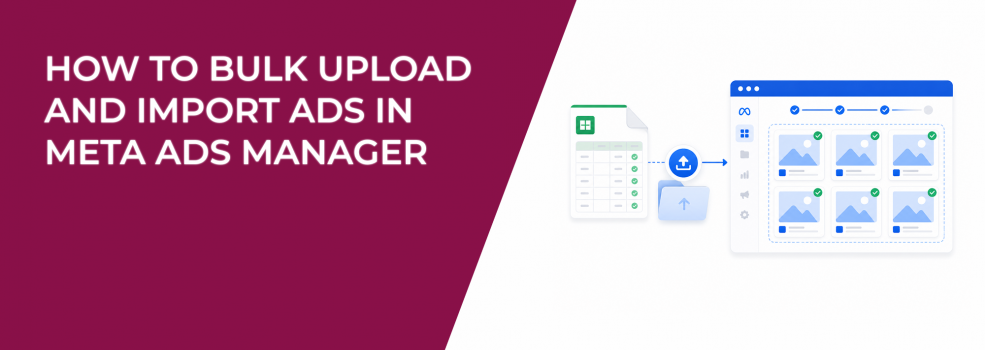
Bulk uploading ads in Meta Ads Manager helps advertisers create campaigns faster. Instead of building every campaign, ad set, and ad manually, you can upload an Excel spreadsheet with the required details.
This is useful for agencies, growth teams, e-commerce brands, and advertisers running large creative tests. It also helps when you prefer editing campaign data in Excel instead of making every change inside Ads Manager.
The main benefit is speed. The main risk is accuracy. If the spreadsheet contains a mistake, that mistake can be copied across many ads at once.
What Bulk Import Does in Meta Ads Manager
Meta lets advertisers bulk import campaign, ad set, and ad information into Ads Manager desktop. You can download a template for new ads or export existing ad details as a spreadsheet.
That means you can prepare campaign data outside the platform, check it in Excel, and upload it back into Ads Manager. This can save time when you are working with many ads or repeated campaign structures.
Ads Manager also gives you the option to bulk import images. This is useful when you want to test several media files with the same ad copy, offer, and landing page.
For example, creating 100 ads manually with 100 different images can take hours. With bulk import, you can prepare the rows in Excel and upload them in one workflow.
When Bulk Uploading Ads Makes Sense
Bulk import works best when the account structure is already clear. If the campaign logic is messy, the spreadsheet will only help you create that mess faster.
Use bulk uploading when you need to:
- Create many ads at once. This helps when launching large tests, product campaigns, or location-based campaigns.
- Test many images with the same copy. You can isolate the visual variable and see which image drives better CTR, CPC, or CPA.
- Edit ads in Excel. This is useful when spreadsheet review is faster than clicking through many ads inside Ads Manager.
- Repeat a proven structure. Teams can copy similar campaign setups across markets, products, or client accounts.
- Prepare campaigns before launch. Excel makes it easier to check names, URLs, media files, and copy before anything spends.
Before uploading, make sure your structure supports the test you want to run. A bulk file should follow the same logic as structuring Facebook campaigns for rapid testing.
How Bulk Import Can Affect Campaign Performance
Bulk upload does not improve CPC, CPA, or ROAS by itself. It only helps you build and edit campaigns faster.
Performance issues happen when the uploaded data is wrong. A bad URL, mismatched image, incorrect ad set, or unclear campaign name can send budget to the wrong place.
In Ads Manager, this may show up as weak CTR, high CPA, poor lead quality, or strange spend distribution. The campaign may look like it has a targeting problem, but the real issue can be inside the spreadsheet.
For example, a lead gen team might upload 40 ads for different audiences. If a few rows use the wrong form or landing page, those ads may collect low-quality leads while still spending normally.
That is why bulk import needs a clear test plan. If you are comparing many creative versions, use a creative testing matrix so each row has a clear purpose.
What to Check Before Uploading the Spreadsheet
A clean spreadsheet prevents most bulk upload problems. Review the file before importing it into Ads Manager.
Check these items:
- File size. Meta notes an approximate 2 MB file limit, so large uploads may need to be split.
- Available columns. Use Meta’s supported columns from the template or export file.
- Unsupported features. Some ad features may not work when exporting and importing ads.
- Campaign and ad names. Names should make the audience, offer, format, and version easy to understand.
- URLs and tracking. Check landing pages, lead forms, UTMs, and destination links.
- Images and media files. Make sure each image matches the correct ad row.
This review matters because Meta may accept the upload even when the campaign logic is weak. A file can be technically valid and still create bad reporting.
Clear naming is especially important. Once ads start spending, you need to know which creative, audience, or offer caused the result. That is why keeping multiple ads organized should be part of the upload process.
Why Bulk Image Testing Needs Careful Setup
Bulk image import is one of the strongest use cases for this feature. It helps you test many images without rebuilding each ad manually.
But the test only stays clean if the other parts of the ad stay the same. If one row changes the image, another changes the headline, and another changes the landing page, the results become harder to read.
A clean image test should keep the audience, copy, CTA, offer, and destination consistent. The image should be the main variable.
This makes the results easier to understand. If one image produces higher CTR and lower CPC, you can connect the improvement to the visual instead of guessing which change mattered.
Risks and Limits of Bulk Uploading Ads
The biggest risk is that bulk upload multiplies mistakes. One wrong value can affect many campaigns, ad sets, or ads at once.
Meta also notes that some advertising features may be unsupported when using export and import workflows. If your campaigns use complex settings, check whether those settings are supported before relying on the upload.
Another risk is moving too fast after import. An uploaded campaign still needs review inside Ads Manager before budget starts scaling.
Check previews, names, URLs, delivery status, and ad set settings after the import. If something looks off, fix it before judging performance data.
A smart workflow is to upload a small batch first. Review it in Ads Manager, confirm everything looks correct, then upload the rest.
Final Takeaway
Bulk uploading ads in Meta Ads Manager can save a lot of time when you manage many campaigns, ad sets, ads, or images. It is especially useful for creative testing, repeated campaign structures, and advertisers who prefer working in Excel.
The feature is powerful because it speeds up setup. It is risky for the same reason. A spreadsheet mistake can affect CPA, ROAS, lead quality, and reporting across many ads.
Use Meta’s template, stay within the file limit, check supported columns, and watch for unsupported features. Then review the imported ads inside Ads Manager before spend starts.
Bulk import should make campaign management faster and cleaner. If it makes the account harder to understand, the upload process needs more structure.