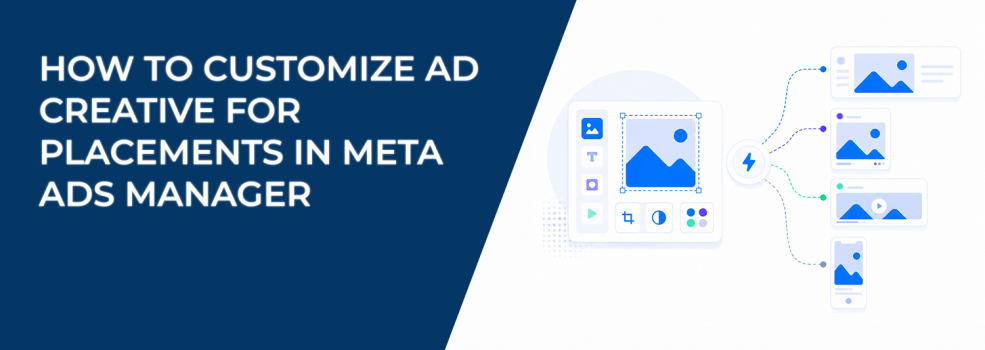
Most advertisers understand that creatives should be adapted for placements. The problem is execution inside Ads Manager, not strategy.
The customization flow is simple on the surface. In practice, small mistakes during setup limit delivery and hurt performance before the campaign even starts.
This guide focuses on how to actually use the tools inside Ads Manager, step by step.
Where customization happens in the setup process
Creative customization only appears at the ad level. You won’t see it while setting budget or targeting.
It becomes available once you reach the Ad setup stage. That’s where you build the creative.
You can choose to:
- Create a new ad using image or video.
- Use an existing post.
- Edit a Creative Hub mockup.
Each option leads to the same workflow, but existing posts usually limit what you can change.
The actual editing flow inside Ads Manager
Once media is uploaded, Meta guides you through a structured editing sequence. This is where most performance impact happens.
The process typically includes:
- Add media:
Upload your images or videos for the ad. - Crop screen:
Adjust aspect ratios and define focal points. - Placement customization:
Replace or edit assets per placement group. - Enhancements:
Enable automatic transformations via Advantage+ creative. - Final review:
Check previews for each placement before publishing.
Most issues start at the crop stage. If the focal point is off, key elements get cut or hidden in certain placements.
How placement groups are structured
Meta doesn’t treat placements individually by default. Instead, they are grouped into clusters.
Common groups include:
- Feeds.
- Stories and Reels.
- In-stream placements.
- Apps and sites (Audience Network).
- Right column and search.
You can edit at the group level or go deeper into individual placements. Group editing is faster, but individual editing gives better control when performance varies.
What “Crop” and “Replace” really control
Most customization work happens through two functions: Crop and Replace.
Crop adjusts how one asset appears across placements. You control the aspect ratio and what part of the image or video remains visible.
Replace swaps the asset entirely for a placement group. This is useful when one format does not translate well across placements.
For example, a horizontal video can be replaced with a vertical version for Stories instead of forcing a poor crop.
How flexible media actually behaves
Flexible media allows Meta to adapt your assets automatically. It expands delivery by fitting creatives into more placements.
However, it only works under specific conditions:
- Manual upload must be selected.
- Format must be single image or video.
- The campaign objective must support it.
If you don’t see it in the Crop stage, it may appear later under Enhancements. Meta is gradually moving it into Advantage+ creative.
Use it for reach expansion, not for controlled testing.
Text fields: where performance often breaks
Text customization is often skipped during setup. Many advertisers reuse the same copy across all placements.
You can edit:
- Primary text.
- Headline.
- Destination link messaging.
If these fields are left empty, Meta may pull text from your website automatically. This often creates weak or irrelevant messaging.
Always check the preview to see what users will actually read.
Editing placements: bulk vs individual control
Meta allows you to edit multiple placements at once. This is useful for speed, but limits precision.
You can:
- Edit placement groups in bulk.
- Open individual placements for detailed adjustments.
Bulk editing works when differences are small. Individual editing is better when placements behave differently.
This becomes critical when testing how ad formats interact with placements. If you’re unsure how formats behave, review different Facebook ad formats before building your creative.
Creative tools that influence engagement signals
Meta includes several optional tools inside the customization flow. These don’t directly change delivery, but they affect engagement signals.
Available tools include:
- Polls:
Add a simple interaction to increase engagement. - Text overlays:
Place key messages directly inside videos. - Logo overlays:
Maintain brand visibility in fast placements. - Background color:
Improve contrast in Stories and Reels.
These elements help improve early interaction, which can speed up optimization.
What you cannot customize
Customization has clear limitations. Some features and setups are not compatible.
Common restrictions include:
- Unsupported objectives.
- Certain formats like catalogue ads or flexible ads.
- Ads created outside Ads Manager.
- Device-specific creative variations.
If customization options are missing, the issue is usually structural. Check the campaign setup before making changes.
Why setup accuracy affects performance later
Customization happens before the campaign delivers. That makes it one of the most important steps in the process.
If setup is wrong, Meta still delivers the ad. It just does it inefficiently.
You’ll often see:
- Uneven spend across placements.
- High CPM in certain environments.
- Low engagement in specific placements.
These issues are harder to fix after launch. It’s easier to get it right at setup.
How customization connects to targeting quality
Creative adjustments improve how ads look. Targeting determines who sees them.
If targeting is weak, Meta will optimize for cheap clicks instead of qualified users. This reduces the impact of customization.
Using high-performing custom audiences improves this. Stronger signals help Meta match the right users with the right creative.
That combination produces more stable results.
Final takeaway
Customizing ad creative for placements is an execution task, not a strategy discussion. It directly affects how Meta delivers your ads.
Small adjustments inside Ads Manager change how your creative appears across placements. That influences engagement, conversion rates, and CPA.
If you skip this step, you lose control over delivery.
If you do it correctly, you reduce wasted spend before optimization even begins.