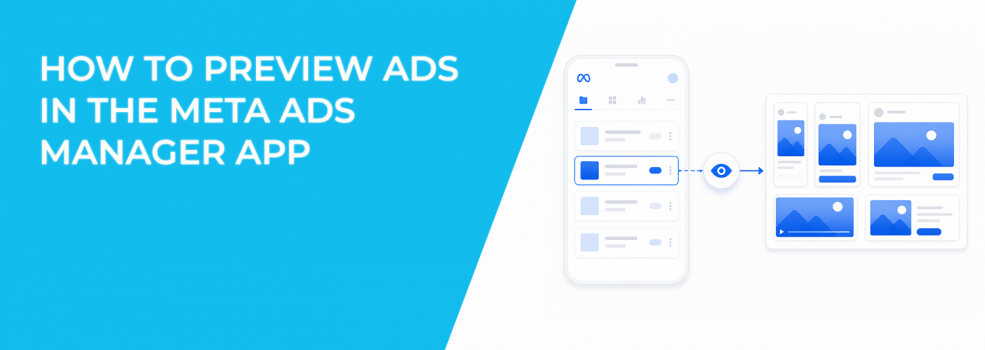
An ad can look fine during setup and still look wrong on mobile. The image may crop badly, the headline may feel too small, or the CTA may sit where users barely notice it.
That is why the preview feature in the Meta Ads Manager app is useful. It lets you check your ad on a mobile device before you judge performance from CPC, CTR, CPA, or ROAS.
For paid social teams, this is a simple quality check. It helps catch visible problems before Meta starts spending budget across placements.
How to Preview an Ad in the Ads Manager App
Meta’s mobile process is short. You open the app, confirm the right account, choose a campaign, then open the ad preview.
Follow this flow:
- Open the Ads Manager app. Use the mobile app so you can see how the ad may appear on a phone.
- Check the ad account number at the top. This matters if you manage several brands, clients, or business accounts.
- Tap the right campaign. Make sure you are reviewing the campaign that contains the ad you want to check.
- Scroll down and tap Preview ad. This opens the preview area inside the app.
- Review the delivered placements. The app shows previews for the placements where the ad is delivered.
- Switch between formats. Use the format control to see how the ad changes across views.
Do not skip the account check. Reviewing the wrong account can lead to approving the wrong creative, especially in agency workflows.
Why Mobile Ad Previews Matter for Campaign Performance
Most Meta users see ads on mobile. That means your ad has to work on small screens, fast scrolling, and different placement layouts.
A bad preview can show up later as weak CTR. If users cannot read the message quickly, fewer people click. CPC can rise because the ad gets impressions without enough engagement.
CPA can also increase. When the ad does not clearly show the offer, users may click out of curiosity instead of real intent. That can create cheap clicks but poor lead quality.
ROAS can suffer for the same reason. If the ad image shows one thing and the landing page sells another, users may leave before buying.
This is where ad placement choices that affect campaign performance become more than a setup detail. The preview helps you see whether each placement is actually usable.
What to Check Before You Approve the Ad
A preview should answer one question: can a user understand the offer in one or two seconds?
Check these details before launch:
- Image cropping. Make sure the product, face, offer, or key visual is not cut off in vertical placements.
- Text readability. Small text may look fine in setup but become hard to read on a phone.
- CTA visibility. The call to action should be easy to notice and match the landing page or lead form.
- First frame of video. If the first frame is unclear, users may swipe before the message appears.
- Placement fit. A polished feed image may not work well in Reels or Stories without resizing.
These issues are easy to miss on desktop. They become obvious when you view the ad in the mobile app.
If the preview shows a bad crop, fix it before the campaign spends. Image cropping breaks Meta ad performance because it changes what the user sees first.
How Preview Problems Show Up in Ads Manager
A visual issue does not always stop delivery. Meta may still spend your budget if the ad is approved and active.
The problem appears in performance signals. You may see normal CPM, steady impressions, and weak CTR. That usually means the ad is reaching people, but not earning enough attention.
If CTR drops while CPM stays stable, check the preview before changing the audience. The issue may be the creative format, not the targeting.
Placement breakdowns can also reveal problems. For example, Feed may produce acceptable CPC while Stories produces expensive clicks. In that case, preview the ad in Stories and check whether the message is visible.
Uneven spend can give another clue. If Meta sends most budget to one placement, the ad should look strong there. If it does not, your campaign may scale into a weak user experience.
Why Creative Tests Need Mobile Preview Checks
Creative tests only work when each ad gets a fair setup. If one version is cropped badly in Reels, you are not really testing the message or offer.
You are testing a broken format.
This matters when you compare static images, videos, carousels, and vertical creatives. One idea may perform worse only because it was not adapted for the placement.
Before launching a creative test, preview each version in the app. Make sure the hook, offer, and CTA are clear in every placement where the ad will run.
If you use one idea across several formats, review adapting one ad concept for Reels, Stories, Feed, and Explore. A single ad concept often needs small changes for each placement.
When to Preview Ads From the Mobile App
Previewing is useful before launch, but it also helps during active management. Use it whenever performance data points to a possible creative issue.
Good moments to preview include:
- Before publishing a new ad. Catch visual problems before the first impressions are delivered.
- After adding new placements. A creative that works in Feed may not work in Stories or Reels.
- Before increasing budget. Do not scale an ad until the main placements look clean.
- When CTR drops. A preview can help separate creative fatigue from format problems.
- When CPC rises by placement. Check the placement view before blaming the whole campaign.
This keeps the review tied to real data. You are not previewing for design perfection; you are checking for issues that can waste spend.
Risks and Limits of Ad Previews
A preview does not predict performance. It only shows how the ad may look in the placements where it is delivered.
It also may not show every possible variation. If you use dynamic creative, automated enhancements, or multiple assets, Meta may assemble versions that differ from the preview you checked.
The preview also cannot tell you whether the offer is strong. An ad can look clean and still fail if the message, price, audience, or landing page is wrong.
Use the preview as a visual QA step. Then use Ads Manager data to judge the campaign. Watch CTR, CPC, CPM, CPA, frequency, placement breakdowns, and conversion rate after delivery starts.
Final Takeaway: Preview Before You Let the Auction Decide
The Meta Ads Manager app makes it easy to preview ads from a mobile device. Open the app, confirm the ad account, choose the campaign, tap Preview ad, and review the placements where the ad is delivered.
This small step can prevent avoidable waste. It helps you catch bad crops, weak first frames, unreadable text, and poor placement fit before those issues affect CPC, CPA, or ROAS.
Do not treat the preview as a guarantee. Treat it as the last check before your creative enters the auction.