Meta Pixel is a foundational tool for anyone advertising on Facebook or Instagram. It helps you collect behavioral data from your website, measure conversions more accurately, and optimize ad delivery for real business results — not vanity metrics.
As privacy rules tighten and third-party signals decline, using Meta Pixel well isn’t optional. It’s essential.
This guide shows how to use it strategically — from installation to advanced audience segmentation — so you can turn data into growth.
What Is Meta Pixel?
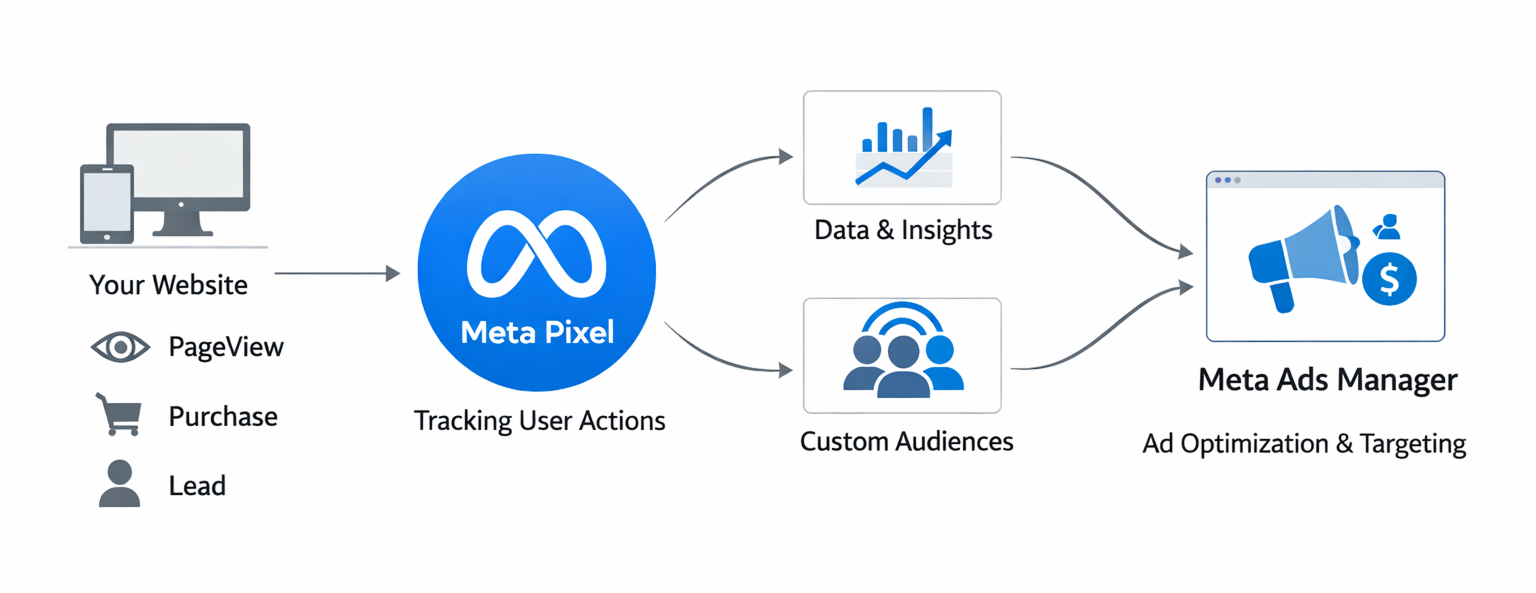
Meta Pixel is a tracking script that connects your website activity to Meta’s ad platform. Once installed, it collects data on user behavior and feeds it back into Ads Manager.
With that data, you can:
-
Track key actions like purchases and form submissions;
-
Retarget users who took specific actions on your site;
-
Optimize your campaigns for deeper-funnel results;
-
Build Custom and Lookalike Audiences with real intent signals.
If you're unsure what to do when you don’t have access to pixel data, check out our guide on running Facebook campaigns without Meta Pixel.
Why Meta Pixel Still Matters
Even in a world of limited cookies and restricted tracking, Meta Pixel remains one of the most valuable first-party data tools available to advertisers.
Clear Attribution Across Touchpoints
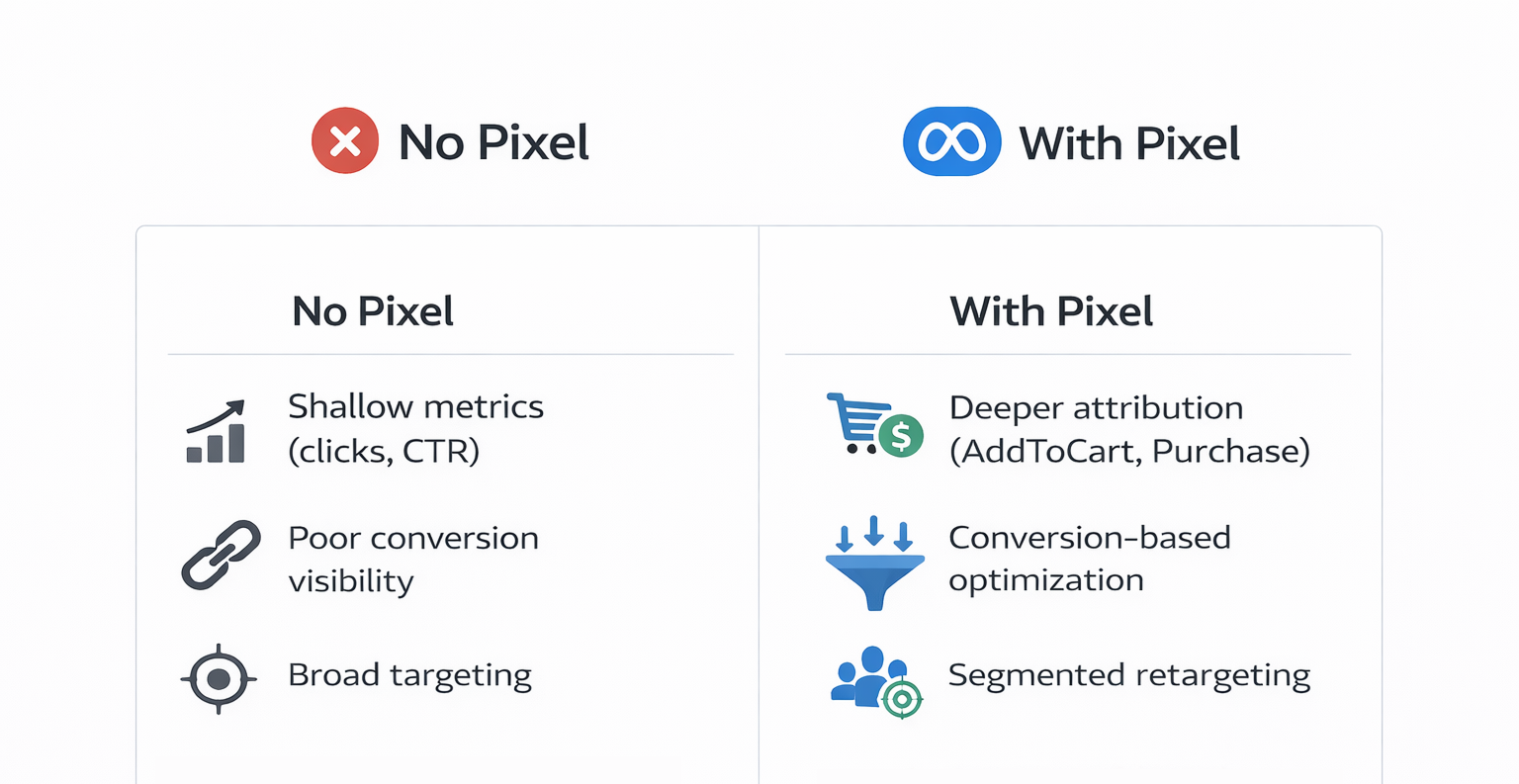
Pixel data reveals which ads, campaigns, and channels drive meaningful outcomes — like sales or leads — not just clicks. It also enables cross-device attribution, helping you track users who interact on mobile but convert later on desktop, or vice versa.
This visibility into user journeys gives you the confidence to allocate budget where it performs best.
Smarter Optimization Signals
Meta’s algorithm learns from what you tell it. With pixel data, you're giving it signals that reflect true business value — not surface-level engagement.
Optimizing for actions like purchases, form submissions, or even product views teaches the algorithm to find users more likely to convert, not just click.
How to Set Up Meta Pixel the Right Way
Getting started with Meta Pixel isn’t just about pasting a code snippet — it’s about structuring your data correctly from day one.
Step 1: Create and Name Your Pixel
Head to Meta Events Manager, create a new pixel, and name it clearly based on your website or business (e.g., MainStore_Pixel2025). This helps avoid confusion if you manage multiple sites or brands.
Step 2: Choose the Best Installation Method
You can install Meta Pixel using:
-
Manual integration (by inserting it in your site header);
-
Partner integrations with platforms like Shopify or WordPress;
-
Google Tag Manager for centralized tag management;
-
Or Meta's Conversions API — which improves reliability by sending data server-to-server.
For best results, use both Pixel and Conversions API together. This hybrid approach protects your data against browser limitations and ad blockers.
Step 3: Test and Verify Tracking
Use the Meta Pixel Helper (a Chrome extension) or Events Manager’s Test Events tab to ensure:
-
The pixel is firing on every page;
-
The correct events are being recorded (e.g., ViewContent, AddToCart);
-
There are no duplicate or missing events.
Without accurate event tracking, your optimization and reporting will be flawed from the start.
What Events Should You Track?
The pixel can capture both standard and custom events. Tracking the right ones allows you to see real performance — not just clicks and impressions.
Use Standard Events for Core Funnel Tracking
These include:
-
PageView — tracks page visits;
-
ViewContent — triggered when a user views a product or service page;
-
AddToCart, InitiateCheckout, Purchase — all crucial for e-commerce;
-
Lead — for form submissions or signups.
These help you map and measure key actions in the customer journey.
Add Custom Events to Capture Deeper Engagement
Custom events let you track brand-specific behaviors. For example:
-
Watching a full product demo video;
-
Using filters or quizzes;
-
Visiting a pricing or FAQ page.
These can help you qualify interest more precisely — especially if your product has a longer sales cycle.
You can use this data to identify high-intent audiences more effectively. Learn how in our guide: How to Identify High-Intent Audiences Using Facebook Insights.
How to Use Pixel Data to Improve Campaign Performance
Collecting data is only half the equation. The real value comes from how you use it to inform audience targeting, retargeting, and optimization.
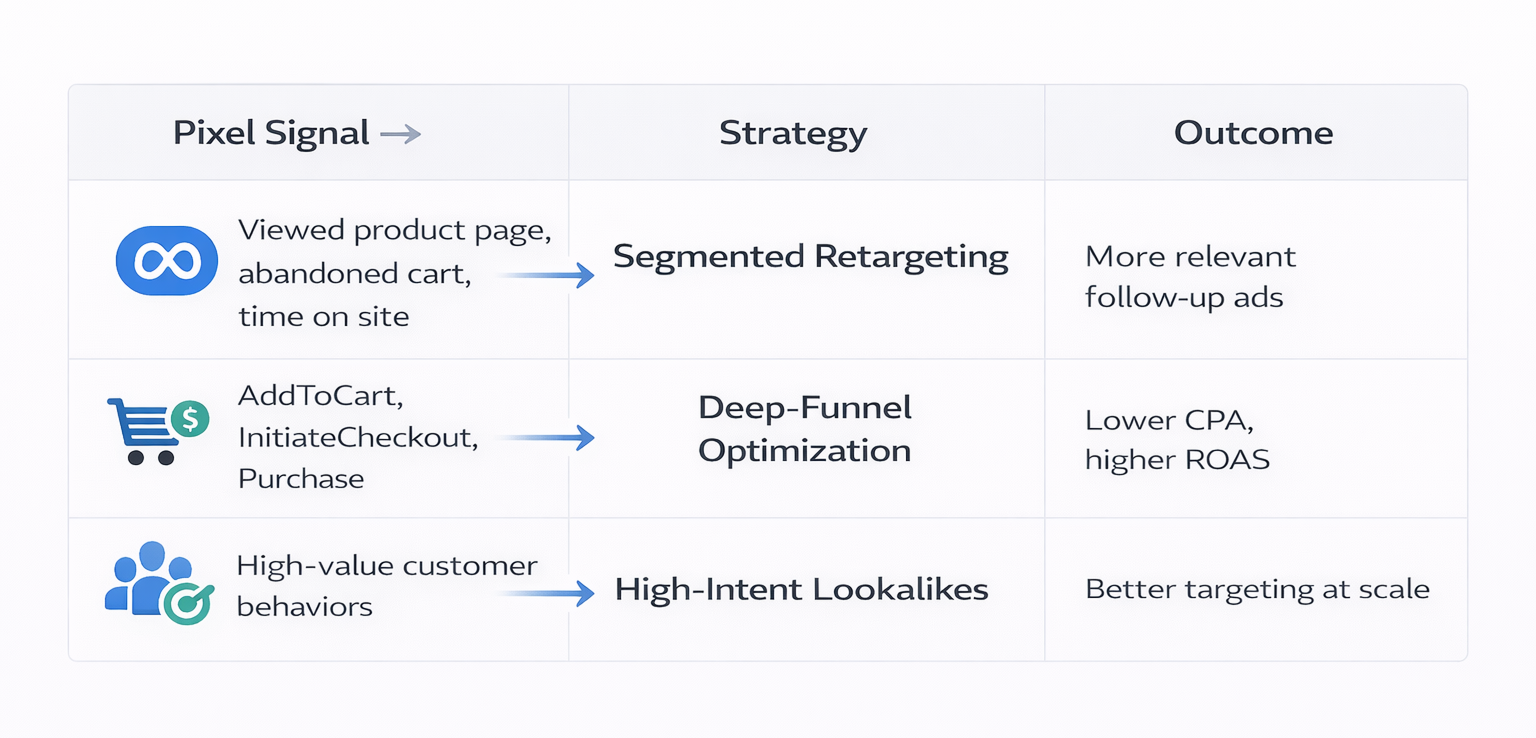
Create Segmented Retargeting Campaigns
Generic retargeting isn’t enough. With Meta Pixel, you can build segmented Custom Audiences like:
-
Users who viewed a product but didn’t purchase;
-
People who added items to cart but abandoned checkout;
-
Visitors who spent over 90 seconds on site.
Then, serve highly relevant follow-up ads. Offer discounts to cart abandoners, or show testimonials to users who explored your product pages.
This is where advanced segmentation really shines. Learn how to structure these audiences for maximum results in our article: Unlock Laser-Targeted Results with Meta Pixel Audience Segmentation.
Optimize for Mid-Funnel and Bottom-Funnel Actions
If you're still optimizing for clicks or traffic, you're likely overpaying for low-value results. Instead, use your pixel to:
-
Optimize for Purchase or Lead events;
-
Train the algorithm using InitiateCheckout or AddToCart signals;
-
Create Custom Conversions around specific business goals (e.g., free trial, booked demo).
You’ll get better delivery quality and lower your cost per result.
Build Lookalike Audiences Based on High-Value Actions
Once your pixel has collected enough event data, create Lookalikes based on:
-
Customers with high lifetime value;
-
Leads who later converted into sales;
-
Users who completed high-engagement behaviors on your site.
Avoid building Lookalikes from low-intent signals like page views. Use the deepest available conversion actions to train the algorithm more effectively.
Advanced Strategies for Experienced Advertisers
Ready to go beyond the basics? Here are three ways advanced marketers are getting more from their pixel data.
1. Add Event Parameters
Use parameters within standard events to capture deeper context — like revenue value, product category, or subscription type. This enables better reporting and segmentation inside Ads Manager.
2. Monitor Funnel Drop-off with Event Data
Set up a conversion funnel in Events Manager using your pixel events. This shows where users are exiting — for example, many starting checkout but few completing purchase.
Use these insights to:
-
Adjust your landing page content;
-
Simplify the checkout process;
-
Add urgency or remove friction.
3. Combine Pixel Data with Offline Conversions
If your product is sold via phone, in-store, or through a sales team, upload offline conversion data to Meta. This allows you to close the loop and properly attribute sales to the ads that drove them.
Even better, sync your CRM to automate this process and enrich Meta’s optimization system with real revenue results.
Final Takeaway
Meta Pixel remains one of the most powerful tools for advertisers who want performance, not just reach. It gives you the behavioral data to retarget more intelligently, optimize more accurately, and scale more confidently.
If you're not using it — or not using it well — you’re missing out on deeper insights, more efficient spend, and more consistent revenue.