Most advertisers already have enough campaign data. The real problem is organizing it in a way that helps decision-making.
Meta Ads Manager for Excel helps advertisers create downloadable reports directly inside Microsoft Excel so they can analyze campaign performance outside the Ads Manager interface.
For agencies and performance marketers, this becomes useful quickly.
A spreadsheet often reveals problems that are easy to miss inside Ads Manager itself:
- rising CPM trends;
- weak placements;
- audience fatigue;
- unstable spend distribution.
The goal is not creating larger reports. The goal is building reports that help advertisers optimize faster.
Why advertisers still use Excel for Meta campaign analysis
Ads Manager is built for managing live campaigns. Excel is usually better for comparing patterns across campaigns and accounts.
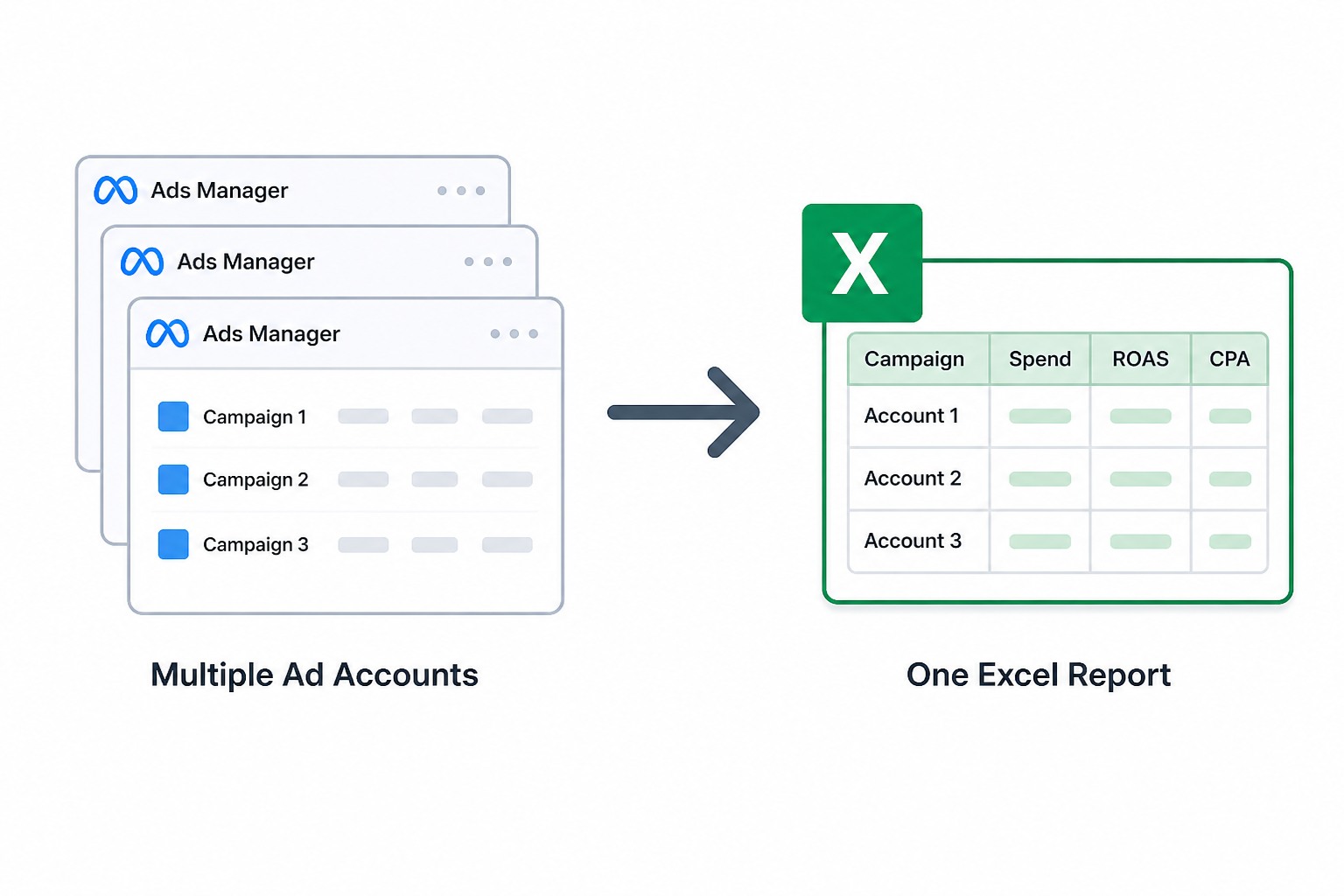
Meta Ads Manager for Excel allows advertisers to create reports from multiple ad accounts at the same time instead of exporting each account separately.
That becomes valuable during:
- weekly performance reviews;
- agency reporting cycles;
- campaign audits;
- budget allocation analysis.
Instead of switching between several accounts manually, advertisers can review everything inside one spreadsheet.
This makes it easier to compare trends across campaigns without constantly changing views inside Ads Manager.
Setting up Meta Ads Manager for Excel correctly
Many advertisers skip setup details and immediately run into reporting issues.
To use Meta Ads Manager for Excel properly, advertisers need to:
- open Excel on a desktop computer;
- go to the Insert tab;
- open “My add-ins”;
- choose Meta Ads Manager for Excel.
If the add-in does not appear, advertisers need to install it from the Office Store first.
Meta also warns that some report errors happen because advertisers use outdated Excel versions.
This becomes a common issue inside agencies where teams use different Office versions across devices. One person refreshes reports successfully while another sees reporting failures or broken data refreshes.
Keeping Excel updated matters more than many advertisers expect.
How Meta report creation actually works inside Excel
The report creation process itself is fairly simple.
After opening the Meta Ads Manager add-in, advertisers:
- select the ad accounts they want included;
- choose a report template or create a custom one;
- select a preset or custom date range;
- review the report summary;
- download the report directly into Excel.
One useful detail is that advertisers can combine several ad accounts into one report instead of exporting reports separately.
This becomes especially helpful for agencies comparing:
- client account performance;
- regional campaign results;
- placement efficiency across brands;
- campaign structures between markets.
Without combined reports, teams often waste time exporting and merging spreadsheets manually.
Many advertisers misunderstand what these reports can actually do
One important limitation appears in the source documentation itself.
Meta Ads Manager for Excel allows advertisers to create and analyze reports, but these reports cannot be used to create new ads by importing them back into Ads Manager.
That distinction matters because many advertisers confuse reporting workflows with bulk ad import workflows.
Reports are for analysis.
Ad imports are for campaign creation and editing.
Mixing those workflows often creates unnecessary confusion during campaign management.
Why refreshing report data can create optimization mistakes
Meta allows advertisers to refresh report data whenever needed. Clicking “Refresh data” replaces previous report results with the latest campaign data.
That flexibility is useful, but it also creates a common optimization mistake.
Many advertisers refresh reports too frequently during active campaigns and begin reacting to unstable short-term signals.
This becomes especially dangerous during:
- learning phase campaigns;
- new creative launches;
- aggressive scaling periods;
- low-volume conversion campaigns.
Inside Ads Manager, advertisers often see temporary CPA spikes, unstable ROAS, or uneven spend pacing before Meta’s optimization system stabilizes naturally.
Constantly refreshing reports during these periods often leads to unnecessary edits.
Not every short-term fluctuation requires intervention.
Good Excel reports help advertisers spot wasted spend faster
The biggest advantage of Excel reporting is flexibility.
Once campaign data sits inside Excel, advertisers can use pivot tables, filters, and custom comparisons to analyze performance more deeply.
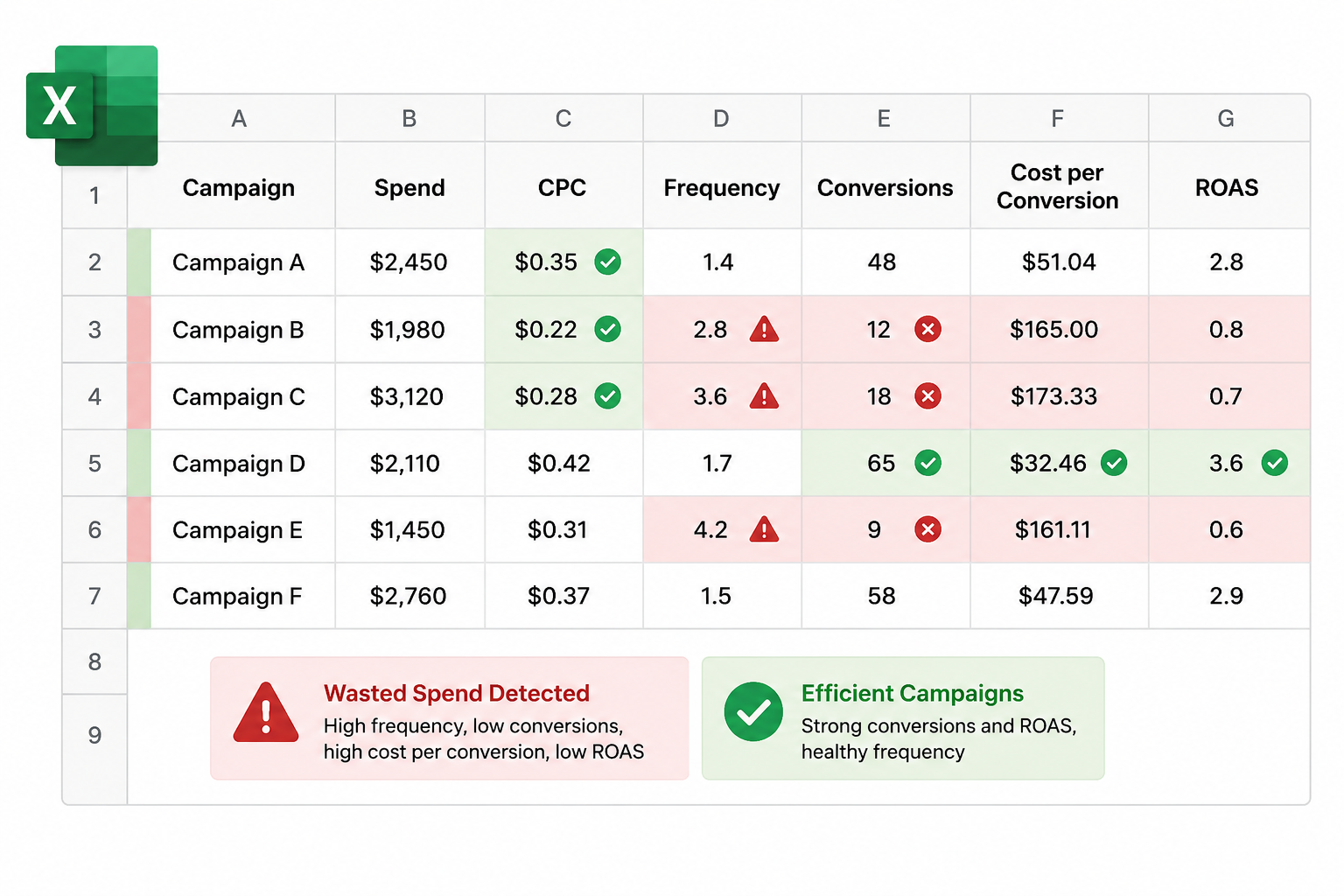
For example, reports can quickly reveal:
- placements generating cheap clicks but weak conversion quality;
- campaigns with rising frequency but flat conversion growth;
- audiences producing low-cost leads but poor close rates;
- regions where CPM rises faster than revenue.
These patterns become easier to identify when advertisers compare data side by side instead of reviewing campaigns individually inside Ads Manager.
This is one reason many agencies audit Facebook ads to uncover hidden wasted spend through Excel reporting systems instead of relying only on Meta dashboards.
Common reporting mistakes advertisers make in Excel
Most reporting problems come from poor report structure, not missing data.
Advertisers often create spreadsheets overloaded with metrics that never influence optimization decisions.
The most common mistakes include:
- tracking every available KPI instead of the important ones;
- comparing campaigns using different attribution settings;
- mixing prospecting and retargeting campaigns together;
- focusing only on low CPC while ignoring lead quality.
These mistakes usually produce misleading conclusions.
For example, a campaign may appear efficient because CTR is high, while actual sales quality keeps declining.
This is why advertisers should understand the misunderstood metrics in Facebook Ads Manager before building large reporting systems.
Better audience targeting makes reporting more important
LeadEnforce advertisers often work with high-intent audiences built from Facebook groups, Instagram followers, engagers, and social profile data.
These audiences usually behave differently from broad targeting campaigns.
That changes reporting priorities.
Advertisers care less about cheap traffic and more about:
- lead quality;
- conversion consistency;
- audience saturation;
- placement efficiency.
This is why teams should learn how to track Facebook Ads performance without getting lost in the data.
Better audience targeting usually increases the need for cleaner reporting systems.
Final takeaway
Meta Ads Manager for Excel is not just a spreadsheet export tool for advertisers who prefer Excel.
It is a practical reporting system that helps advertisers compare campaigns, analyze multiple ad accounts, spot wasted spend, and organize performance data more clearly.
The best reports are usually the simplest ones.
They focus on the metrics tied directly to optimization decisions instead of overwhelming teams with unnecessary numbers.
For scaling advertisers, that clarity often becomes one of the biggest advantages in campaign management.