When a campaign takes longer than expected to launch, the issue is rarely the ad setup itself. It usually starts earlier, when someone cannot find the right creative, re-uploads an existing file, or rebuilds a post that already exists.
These small inefficiencies compound. Over time, they slow down testing, create duplicate data, and make performance harder to interpret.
File Manager in Meta Business Suite is designed to remove that friction, but only if it is used as part of the workflow, not just as a storage space.
What File Manager actually enables in day-to-day work
At a surface level, File Manager is a centralized place to upload and organize images and videos. In practice, it acts as the foundation for how teams collaborate and execute campaigns.
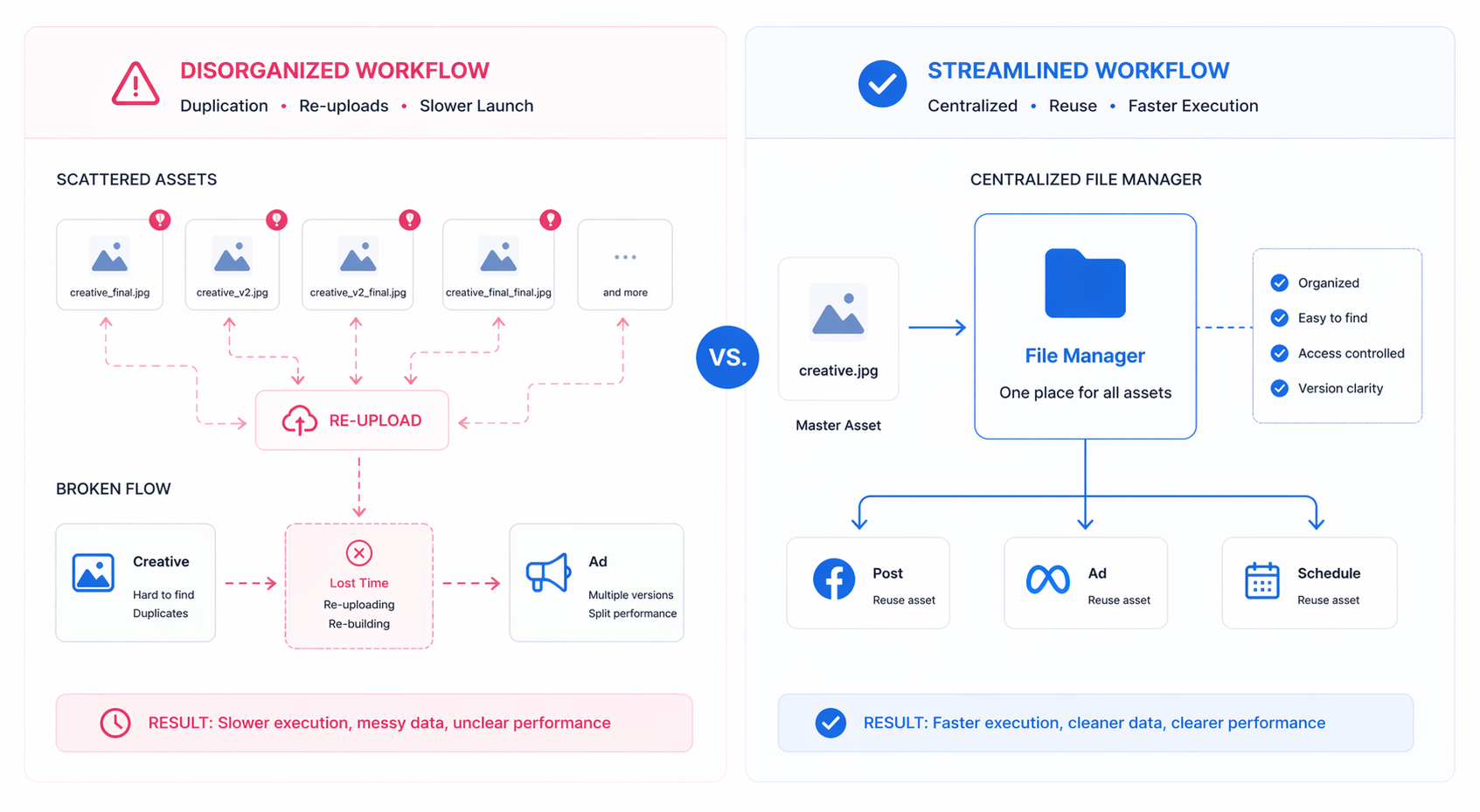
It supports three operational functions that directly affect campaign execution:
- Centralized asset storage. All creatives live in one location within the business portfolio. This eliminates the need to re-upload the same files across campaigns, posts, and ad formats.
- Controlled collaboration. Teams can create shared folders and assign access levels. Someone can have full control over a creative folder, while another person might only have permission to use assets without modifying them. If you’re managing multiple clients or brands, this problem scales quickly, which is why teams often rely on stricter systems for staying organized when multiple people or accounts are involved.
- Forward planning. Assets can be uploaded in bulk ahead of time, which allows teams to prepare posts, stories, and ads before they go live.
None of these features change performance on their own, but they determine how consistently campaigns are built.
How this connects to posts, ads, and scheduling
File Manager is not isolated. It feeds directly into the rest of Meta Business Suite.
When creating posts, you select media from your existing assets, write platform-specific copy, and either publish immediately or schedule based on follower activity. The same asset can then be reused later without any duplication.
When managing posts, that connection remains intact. You can edit, reschedule, duplicate, or analyze performance without replacing the underlying media.
The same logic applies to ads. Whether you are creating ads on desktop or mobile, the system pulls from existing assets. This is where things often break down.
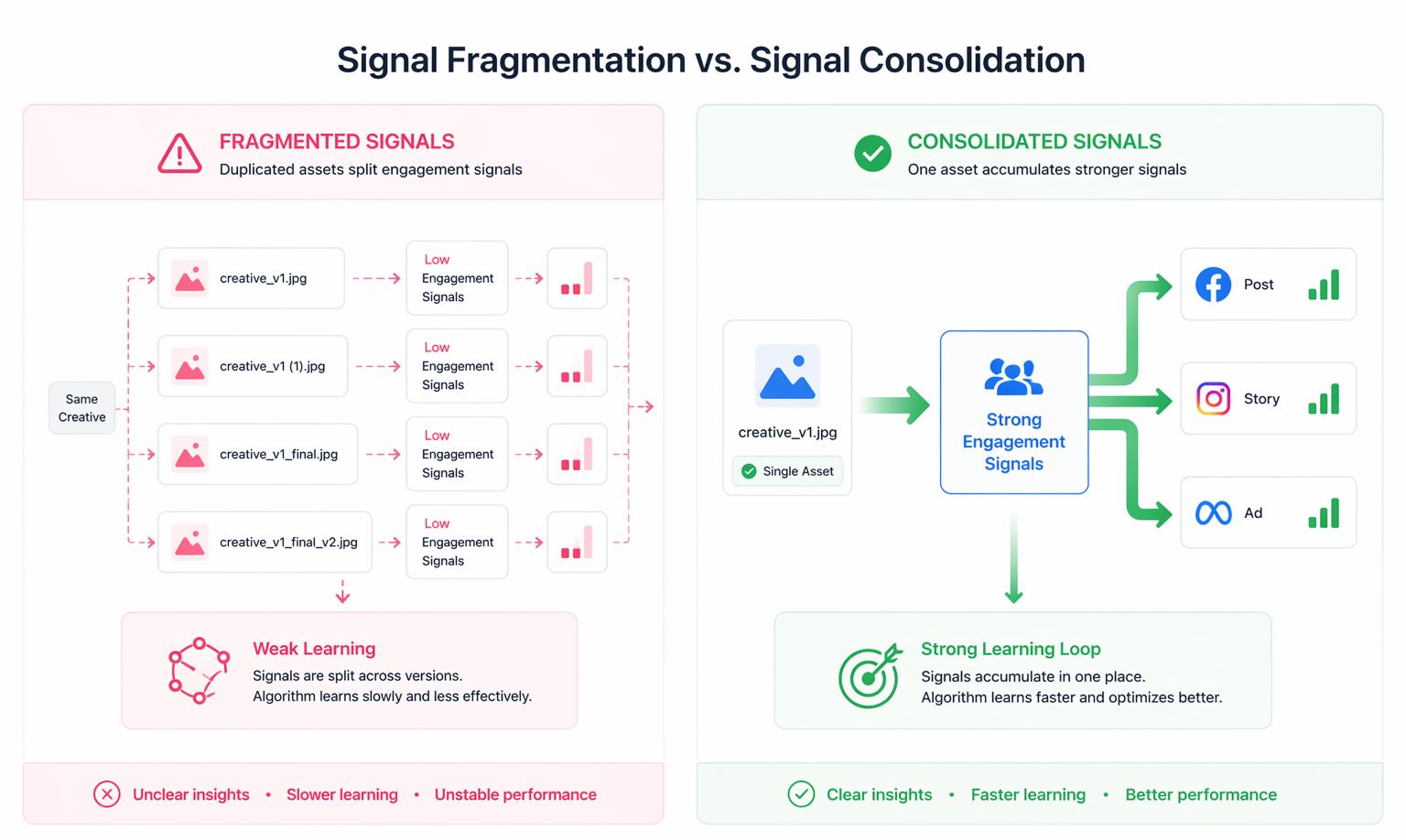
If creatives are uploaded multiple times instead of reused, the system treats them as separate inputs. That splits engagement signals and makes it harder to understand what is actually driving results.
Why asset structure affects performance more than expected
Creative is one of the main drivers of delivery. But the system only learns effectively when signals are consistent.
Disorganized asset handling creates three specific problems:
- Signal fragmentation. The same creative exists in multiple versions, so engagement data is split across them instead of accumulated in one place.
- Inconsistent testing. Variations are not clearly tracked, which makes it difficult to understand whether a performance change came from the creative or something else.
- Slower iteration cycles. Teams spend time recreating or searching for assets instead of launching new tests.
These issues do not appear as obvious errors. They show up as unstable CPA, unclear winners, and slower scaling.
Where this typically becomes a bottleneck
In accounts with frequent publishing, especially those combining organic content and paid campaigns, duplication happens quickly. A post is created using one asset, then a similar version is uploaded again for ads instead of being reused.
In collaborative environments, the issue is access and consistency. Without clear folder structure and permissions, different team members organize assets in different ways. After a few weeks, the system becomes difficult to navigate.
Even in smaller teams, the problem appears over time. What starts as a simple library turns into a mix of loosely named files that no longer reflect how campaigns are actually built.
What to check before changing your setup
Before restructuring File Manager, it is worth diagnosing where the friction actually comes from.
Look at how assets are currently used:
- If the same creatives are uploaded repeatedly, the issue is discoverability, not storage.
- If naming is inconsistent, the problem is process, not tooling.
- If assets are being edited or replaced unexpectedly, access permissions are likely too broad.
Each of these points requires a different fix. Treating them as one problem usually leads to overcomplication.
A practical way to structure your asset system
The goal is not to create a perfect taxonomy. It is to make reuse faster than re-creation. If your team is still rebuilding creatives instead of reusing them, it’s worth looking at a more structured approach to building a structured creative library for faster campaign launches.
A workable structure usually includes:
- Clear grouping logic. Organize assets based on how they are used in campaigns, such as by audience type, funnel stage, or messaging angle, rather than by upload date.
- Functional naming. File names should describe the role of the creative. For example, instead of “final_v2,” use something that reflects the angle or use case. This reduces guesswork during campaign setup. This becomes much easier when you follow clear principles around naming conventions that make campaign data easier to interpret, especially when multiple creatives are tested in parallel.
- Controlled editing rights. Limit who can modify or reorganize folders. This keeps the structure stable over time.
- Regular cleanup. Archive or separate outdated creatives so they are not accidentally reused.
This structure becomes significantly more important when interpreting performance. If you cannot connect a result to a specific creative variation, the data loses value.
If your team frequently works from mobile, maintaining this structure becomes more difficult.
Final takeaway
File Manager is not just an organizational tool. It determines whether your creative workflow is repeatable.
When assets are easy to find, reuse, and control, campaigns move faster and performance signals become clearer.
When they are not, teams end up rebuilding what already exists, and performance insights become harder to trust.