It’s common to see lead volume reported in Ads Manager that doesn’t match what the sales team receives. Campaigns continue delivering, CPL remains within target, and nothing appears broken at the surface level. However, when leads fail to reach the CRM or the right team, the issue is often tied to Leads Access rather than campaign setup.
Meta Leads Access controls who can view, download, and receive lead data collected through lead ads. While it is designed to protect customer information, it also plays a critical role in whether leads are actually usable after submission.
If this layer is misconfigured, the campaign may perform well in reporting while underperforming in actual revenue impact.
What actually happens after a lead is submitted
After a user submits a lead form, Meta processes the event in two separate steps. First, the lead is recorded inside Ads Manager. Second, the platform sends that lead data to the assigned people, partners, or CRM systems.
If the second step fails, the lead still appears as a result, but it never reaches the team responsible for follow-up. This creates a disconnect between reported performance and real outcomes.
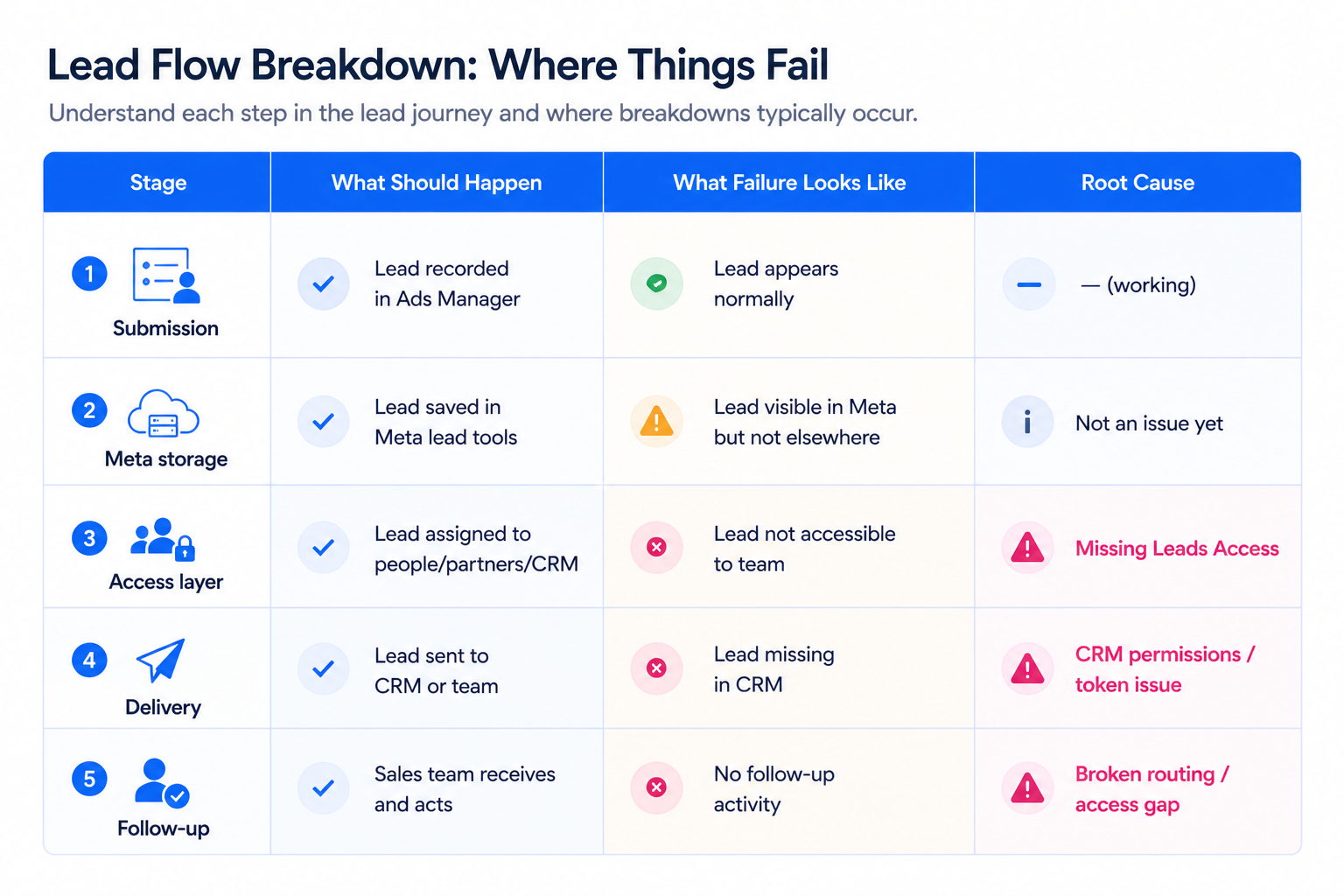
That’s why Facebook Lead Ads can fail even when metrics look good. A stable CPL does not guarantee that leads are being received, processed, or converted.
A typical mismatch looks like this:
- Ads Manager reports consistent lead volume.
- CRM records show fewer entries than expected.
- Sales follow-up activity declines or becomes inconsistent.
This pattern usually indicates a breakdown in lead access or delivery, not an issue with targeting or creative.
Where Leads Access is managed in Meta Business Suite
Leads Access is configured within Meta Business Suite, not inside Ads Manager. This separation is one reason why it is often overlooked during campaign setup.
To review access, follow this path:
- Open Meta Business Suite.
- Select the correct business portfolio.
- Go to Settings.
- Navigate to Integrations, then Leads access.
If the feature has not been used before, Meta will prompt you to confirm and enable access customization. Once enabled, you will see three categories: People, Partners, and CRM systems.
Each category represents a different layer of lead handling, so reviewing all three is essential for diagnosing delivery issues.
Why users or partners may be missing from Leads Access
When a required user or partner does not appear in Leads Access, the issue is usually related to missing prerequisites rather than a system error.
Meta requires the following conditions to be met:
- A person must have a role assigned to the Page before they can access lead data.
- A partner business must be connected to the Page, not just the ad account.
- Only the business that owns the Page can assign Leads Access to partners.
- A CRM must be integrated with Meta before it appears as an option.
These dependencies often cause issues during onboarding. For example, an agency may receive ad account access but not Page-level permissions, which prevents them from managing leads properly.
To avoid this, first ensure you give clients or teammates the right Ads Manager access, then verify Page roles and Leads Access settings.
Without aligning these layers, campaigns can run without a functioning lead delivery system.
How to assign Leads Access correctly
Leads Access can be assigned directly within the Leads Access section in Meta Business Suite. The process differs slightly depending on whether you are assigning access to people, partners, or CRM systems.
- People: select users who already have Page roles and grant them access to lead data.
- Partners: assign access to connected partner businesses so they can manage their own team’s permissions.
- CRM systems: enable access for integrated CRMs so they receive lead updates automatically.
If a person or partner does not appear in the list, the first step is to confirm they have the correct Page role.
You can also assign access through the People section. This allows you to choose specific assets and enable Leads under partial permissions, which is useful when you want to limit access to only necessary tools.
This approach helps maintain control over sensitive customer data while ensuring operational continuity.
How CRM permissions affect real-time lead delivery
Assigning access to a CRM system does more than grant visibility. It determines whether Meta sends real-time notifications about new leads.
Once access is enabled, Meta sends a lead update, and the CRM retrieves the full data. However, this retrieval step depends on proper authentication.
In many cases, custom CRM systems use user or Page access tokens. If the user associated with the token does not have Leads Access, the data request will fail.
This leads to a clear discrepancy:
- Leads appear in Ads Manager.
- Leads exist within Meta systems.
- The CRM does not receive the data.
This is a common example of how API connection errors can skew Facebook Ads reporting. When data does not flow correctly, performance analysis becomes unreliable and optimization decisions are based on incomplete information.
Removing Leads Access without disrupting lead flow
Removing access is necessary when roles change, partners rotate, or systems are no longer in use. It helps protect customer data and reduce unnecessary exposure.
To remove access, return to the Leads Access section, locate the relevant person, partner, or CRM, and delete their access. This can also be done through the People or Pages settings.
However, removing access without reviewing dependencies can interrupt lead delivery. If a CRM or partner is still responsible for routing leads, removing it will stop the flow immediately.
Before making changes, confirm how leads are currently being handled. This ensures that cleanup actions do not create new operational issues.
How Leads Access issues affect CPA and CAC
Leads Access problems rarely impact top-of-funnel metrics such as CPC or CPM. Ads continue to enter auctions and generate form submissions as expected.
The impact appears later in the funnel.
When leads are delayed or missing, contact rates decrease. When CRM data is incomplete, conversion tracking becomes less accurate. Over time, Meta continues optimizing for submissions rather than qualified outcomes.
This creates a misleading performance picture. CPL may appear efficient, while CPA and CAC increase due to poor lead utilization.
Recognizing this gap is critical for accurate performance evaluation.
What to check before scaling a lead campaign
Before increasing budget, it’s important to confirm that the entire lead flow is functioning correctly from submission to follow-up.
Run a simple validation process:
- Submit a test lead through the active form.
- Confirm it appears in Ads Manager.
- Check that it is visible in Meta lead tools.
- Verify that it reaches the CRM and is assigned correctly.
Each step confirms a different part of the system. If any step fails, the issue should be resolved before scaling.
This prevents additional spend from amplifying an existing operational problem.
Final takeaway
Meta Leads Access determines who can access and receive lead data, but its impact goes beyond permissions. It directly affects whether leads move through your funnel and contribute to revenue.
If this layer is misconfigured, campaigns can continue generating leads that never reach sales. This leads to misleading metrics and inefficient spend.
Before optimizing campaigns or increasing budgets, review Leads Access carefully. Confirm roles, partner permissions, CRM connections, and test lead delivery.
Only then can performance metrics be trusted as a reliable indicator of campaign success.