Published Meta ads should never be treated as “done” just because they are live.
An ad can be approved, active, and spending while still showing users a weak experience. The image may crop badly in Stories. The headline may be too long for mobile. The CTA may look disconnected from the offer. The wrong Page or Instagram identity may appear. The destination may technically work but feel confusing from the user’s point of view.
Previewing a published ad in Meta Ads Manager helps advertisers catch these issues after launch and before they turn into wasted spend.
What Published Ad Preview Really Solves
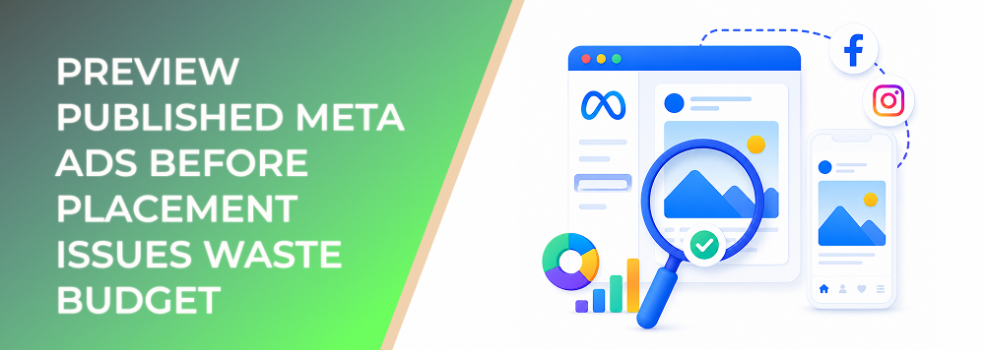
Published ad preview gives advertisers a way to inspect how a live ad appears across placements.
This matters because Meta ads do not appear in one fixed format. The same creative may be shown in Facebook Feed, Instagram Feed, Stories, Reels, Messenger, and other placements. Each environment has its own layout, visual constraints, and user behavior.
A desktop mockup is not enough. A creative that looks polished in one view may look crowded, cropped, or unclear in another.
Published previews are especially useful when a campaign has already started spending and the team needs to verify what users are actually seeing. This is less about design perfection and more about performance protection.
Business Impact on CPC, CPA, CAC, ROAS, and Lead Quality
Bad creative presentation creates avoidable friction.
If the message is hard to read, users are less likely to click. If the CTA does not match the offer, clicks become less qualified. If the landing page expectation is unclear, conversion rate can drop. If a placement makes the product or value proposition difficult to understand, Meta may still spend, but the spend becomes less efficient.
Previewing published ads can help protect:
- CPC by improving clarity and reducing low-quality engagement.
- CPA by making sure the ad experience supports the intended conversion.
- CAC by preventing weak creative execution from attracting poor-fit prospects.
- ROAS by reducing spend on placements where the ad does not communicate value clearly.
- Lead quality by confirming the message is specific enough for the right audience.
The preview itself does not optimize performance. It helps advertisers find execution problems before they misread the data.
Typical Scenarios Where This Applies
The ad was approved but performance looks weak
If CTR, conversion rate, or lead quality is disappointing, the preview is one of the first places to check. The issue may not be the audience or budget. It may be how the ad appears.
A creative was adapted across multiple placements
Vertical, square, and horizontal formats can behave differently. Published preview helps confirm that key text, product visuals, faces, logos, and CTAs remain visible.
A client or stakeholder questions the live ad
Agencies often need to show what was actually published. Previewing a live ad gives the team a more concrete review point than screenshots or assumptions.
The ad uses automatic creative enhancements
When Meta applies creative or format adjustments, advertisers should review how the final ad experience appears across placements.
A campaign is spending but not converting
Before changing the audience or increasing budget, check whether the published ad is giving users a clear next step.
Risks and Considerations
A preview is not a full performance report.
It shows how the ad may appear, but it does not explain whether the audience is relevant, whether the offer is strong, or whether the landing page converts. It should be used alongside campaign metrics, placement breakdowns, and downstream lead or sales data.
Another risk is overreacting to one preview. Some dynamic or automated ad setups may show variations. One preview may not capture every possible version users see.
Advertisers should also avoid making constant edits based only on visual preference. If an issue is cosmetic and performance is strong, unnecessary edits can create noise. If an issue affects clarity, trust, or conversion intent, it deserves action.
Prerequisites and Dependencies
Before using published ad preview as part of campaign QA, advertisers should have:
- Access to Meta Ads Manager.
- A published campaign, ad set, or ad.
- Clear knowledge of intended placements.
- A checklist for creative, CTA, identity, destination, and offer accuracy.
- Campaign naming that makes the ad easy to find.
- Agreement on who approves post-launch issues.
- Performance metrics to compare against the preview findings.
Previewing works best when it is part of a repeatable QA process, not a last-minute reaction.
How LeadEnforce Helps
LeadEnforce helps advertisers reduce the chance that creative QA is wasted on the wrong audience.
A polished ad shown to poor-fit users can still generate weak results. The preview confirms how the ad looks. LeadEnforce helps improve who the ad reaches.
Advertisers can build more relevant audiences from Facebook groups, Instagram profiles, followers, engagers, LinkedIn professional data, and custom social-profile data. That makes creative reviews more meaningful because the ad is being checked against a clearer audience hypothesis.
For example, a B2B team can preview a lead-gen ad built for a LinkedIn-informed professional segment. An ecommerce brand can review placement fit for a creative aimed at followers or engagers of niche Instagram profiles. An agency can QA client ads while knowing the campaign is not relying only on broad targeting assumptions.
Better audience inputs do not remove the need for preview checks. They make the whole campaign test cleaner.
Practical Recommendations
Build a published-ad QA checklist
Check the Page identity, Instagram identity, image crop, video framing, headline, primary text, CTA, destination, offer details, and placement fit.
Review mobile placements carefully
Many performance issues appear on mobile first. Small text, weak contrast, awkward cropping, and unclear CTAs can hurt results even when the desktop preview looks fine.
Compare preview issues with performance data
If a placement looks weak and also has poor CTR or conversion rate, the preview may explain the performance problem.
Do not change everything at once
If you identify a creative issue, fix the specific issue. Avoid changing audience, budget, creative, copy, and destination at the same time unless the campaign setup is clearly broken.
Preview again after major edits
Any meaningful creative, destination, or identity change deserves another check after publishing.
Final Takeaway
Previewing published Meta ads is a practical budget-protection habit.
It helps advertisers catch live execution problems that can quietly hurt CPC, CPA, CAC, ROAS, and lead quality. Use it after launch, during troubleshooting, and before scaling spend. A campaign should not just be live; it should be clear, credible, and placement-ready.
To test better creative against more relevant campaign audiences, join the free 7-day LeadEnforce trial period.
Related LeadEnforce Articles
- How to Fix Meta Ad Preview Issues Before They Waste Campaign Budget — Explains how preview problems create avoidable campaign waste.
- How to Use Meta Ad Previews to Catch Creative Problems Before Launch — Useful for building a stronger preview process before publishing ads.
- How to Customize Ad Creative for Placements in Meta Ads Manager — Shows why placement fit matters before and after ads go live.
- How to Add New Ads to an Existing Meta Campaign Without Breaking Performance — Relevant when preview checks lead to adding a corrected creative variation.