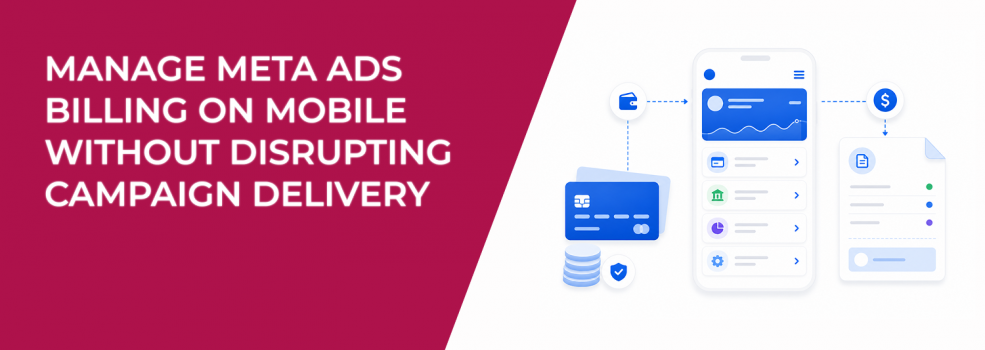
Billing issues can stop ads quickly.
If your payment method fails, Meta may pause campaign delivery until the issue is fixed. That can affect spend, lead volume, CPA, and ROAS.
The Meta Ads Manager app lets you manage billing from your phone. This is useful when campaigns are live and you are away from your desktop.
How to find billing and payments in the Meta Ads Manager app
Open the Meta Ads Manager app.
Tap Settings at the top left of the app. Then tap Billing and payments.
From there, you can manage:
- Payment methods: Add, remove, or edit payment information.
- Payment activity: View statements and past charges.
- Business info: Update your business name, address, and other details.
- Payment threshold: Set the amount that controls how often you are billed.
Once these details are updated, your billing and payments are managed from the app.
Before launching campaigns, make sure you set up your Facebook ad account correctly. Billing access should be checked before the first campaign goes live.
Why payment methods affect campaign delivery
Your ads need a working payment method to keep running.
If a card expires, gets declined, or is removed, Meta may stop delivery. In Ads Manager, this can look like a sudden drop in spend.
A campaign may normally spend $200 by midday. If it only spends $20, the issue may not be creative, targeting, or bidding. It may be billing.
Check payment methods before changing campaign settings.
A backup payment method can reduce the risk of a full delivery stop. If the main payment method fails, Meta may still have another way to charge the account.
How payment activity helps explain charges
Payment activity shows statements and past charges.
This helps you compare Meta charges with campaign spend. It is also useful when a finance team or client asks why a charge appeared.
During scaling, charges may happen more often. That does not always mean something is wrong. The account may simply be reaching its payment threshold faster.
Do not pause a working campaign only because a charge looks unfamiliar. Check payment activity first.
How payment activity helps explain charges
Payment activity shows statements and past charges.
This helps you compare Meta charges with campaign spend. It is also useful when a finance team or client asks why a charge appeared.
During scaling, charges may happen more often. That does not always mean something is wrong. The account may simply be reaching its payment threshold faster.
Do not pause a working campaign only because a charge looks unfamiliar. Check payment activity first.
Why billing checks should happen before budget increases
Budget increases can expose weak billing setups.
A campaign spending $50 per day may run without issues. The same campaign at $500 per day may trigger charges more often. If the card limit is low or the bank blocks repeated payments, delivery can stop.
This can make scaling look like a performance problem.
For example, you may raise the daily budget and then see spend drop later that day. CPA may rise after delivery resumes because the campaign lost part of its strongest delivery window.
Before increasing budgets, check the active payment method, backup method, and payment threshold.
Why payment threshold matters during scaling
The payment threshold controls when Meta bills your account.
If campaign spend increases, your account may hit the threshold more often. This can lead to more frequent charges.
That matters when you raise budgets.
A bank block, low card limit, or failed charge can interrupt delivery. If spend drops soon after a budget increase, check the payment threshold and payment method.
Make sure billing can support the higher spend before scaling campaigns.
Keep business info accurate
The Ads Manager app also lets you update business info.
This includes your business name, address, and other account details. These records help keep statements and invoices clean.
For agencies, wrong business info can create client confusion. For small businesses, it can make bookkeeping harder as ad spend grows.
This may not directly change CPC or CPA. But it helps avoid billing delays and reporting problems.
What to check before editing billing on mobile
Billing changes can affect active campaigns.
Before making updates, check the basics:
- Confirm the active payment method: Make sure the correct card or payment account is being used.
- Avoid removing the only valid payment method: This can stop campaign delivery.
- Check active campaign spend: A sudden spend drop may point to a payment issue.
- Tell the campaign owner: Media buyers should know when billing changes happen.
These checks help prevent avoidable campaign interruptions.
If payment issues cause account access problems, review how to reactivate a disabled Facebook ad account.
If billing problems overlap with account restrictions, follow a process to handle Meta account restrictions without losing performance.
Final takeaway
The Meta Ads Manager app makes billing management easier from mobile.
You can update payment methods, review payment activity, change business info, and manage the payment threshold from your phone.
If campaign spend drops suddenly, check billing before changing your campaign strategy. A payment issue can look like a performance problem, but the fix may be inside Billing and payments.